

What is Multifactor Authentication (MFA)?
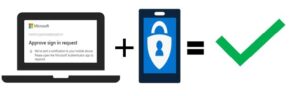
MFA enhances cyber security protection by requiring a two-step authentication method to verify your identify when connecting to our systems from outside of the network.
MFA protects UCN’s systems and data from unauthorized access if a user’s account has been compromised. With MFA, you will protect your UCN account by pairing something you know (your username and password) with something you have (your smartphone).
How do I set up Multi-Factor Authentication (MFA)?
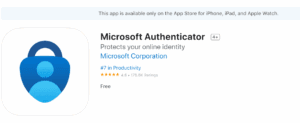
Download and install the Microsoft Authenticator appVisit the Apple app store or Google play store on your device and install the Microsoft Authenticator app. Alternatively, visit aka.ms/authapp and download the Microsoft Authenticator app. The Microsoft Authenticator application is not available on your computer and must be downloaded to a mobile-enabled device (i.e. smartphone).
Microsoft Authenticator Quick Start Summary
Review these summary steps to learn how to setup MFA and download the Microsoft Authenticator app onto your smartphone.
- Sign into your computer and have your smartphone ready.
- On your computer, open a web browser
- In the browser, go to https://aka.ms/setupsecurityinfo and sign in with your UCN credentials.
- Click Add Method and select Authenticator App to generate a QR code.
- Install the Microsoft Authenticator App on your smartphone from the App Store.
- Open the app on your smartphone and select Add account and then select Work or School.
- Using the app on your smartphone, scan the QR code displayed on your computer. (You might have to allow access to your camera)
- Follow the prompts to complete the account setup.
Microsoft Authenticator Set-up Instructions
Important: You will need both your computer and your smartphone to enroll and download the Microsoft Authenticator app.
- On your computer, open a Web Browser
- In the web browser, go to https://aka.ms/setupsecurityinfo and sign in with your UCN credentials.
- Microsoft asks you to stay signed in, click ‘Yes’.
- Click ‘Add a method’ and select ‘Authenticator app’ from the list of options
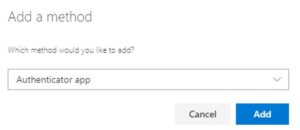
You are now prompted to download and install the Microsoft Authenticator app on your smartphone. - Once downloaded, touch ‘Open’.
- The app asks you to accept their policy statement. Touch ‘I Agree’. You are migrated to the next screen.
- Touch ‘Work or school account’.
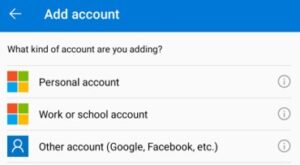
- On your computer, click ‘Next’. A QR code displays.
- Using your smartphone, scan the code using the Microsoft Authenticator app.
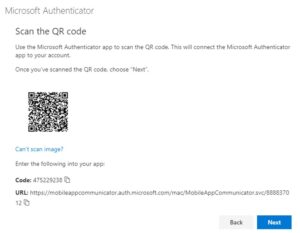
- On your computer, click ‘Next’. The ‘Account added successfully’ message appears at the bottom of the screen.
Important: Depending on your smartphone settings, you may receive the message “App Lock Enabled”. To better protect you, we have enabled App Lock by default.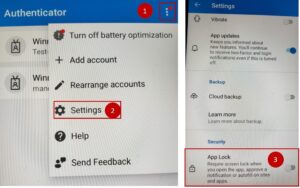
To respond to an MFA notification without having to enter your device PIN, go to the Settings inside the Microsoft Authenticator app on your smartphone (Menu| Settings), scroll down to the Security section and turn off the ‘App Lock’ setting. - On your computer, you are prompted to try out the MFA app.
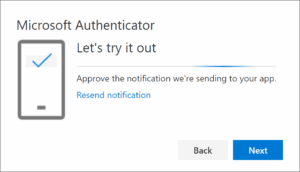
- On your smartphone, touch ‘Approve’ within 30 seconds to complete the setup.
- You are then notified that the sign-in was approved.
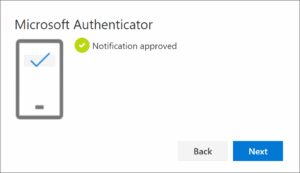
- You are then notified that the sign-in was approved.
Frequently Asked Questions (FAQ)
If you would rather have SMS messages sent to your phone instead, select I want to set up a different method. Microsoft 365 will ask for your mobile number, then send you an SMS message containing a 6-digit code to verify your device.
To set up SMS text messages
- Sign in to your work or school account and then go to your My Account page.
- Select ‘Security info’ from the left navigation pane or from the link in the Security info block, and then select ‘Add Method’ from the Security info page.
- On the Add a Method page, select ‘Phone’ from the list, and then select ‘Add’.
- On the Phone page, type the phone number for your mobile device, choose Text me a code, and then select ‘Next’.
- Type the code sent to you through text message to your mobile device, and then select ‘Next’. The page changes to show your success.
Your security info is updated and you can use text messaging to verify your identity when using two-step verification or password reset. If you want to make text messaging your default method, see the Change your default security info method section of this article.
Contact Help Desk
If you are having trouble and require assistance, please contact the UCN IT Helpdesk.