
What is Multifactor Authentication (MFA)?
MFA enhances cyber security protection by requiring a two-step authentication method to verify your identify when connecting to our systems from outside of the network.
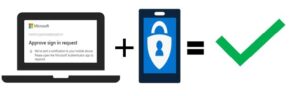 |
MFA protects UCN’s systems and data from unauthorized access if a user’s account has been compromised. With MFA, you will protect your UCN account by pairing something you know (your username and password) with something you have (your smartphone). |
How do I set up Multi-Factor Authentication (MFA)?
 |
Download and install the Microsoft Authenticator app
Visit the Apple app store or Google play store on your device and install the Microsoft Authenticator app. Alternatively, visit aka.ms/authapp and download the Microsoft Authenticator app. The Microsoft Authenticator application is not available on your computer and must be downloaded to a mobile-enabled device (i.e. smartphone). |
Microsoft Authenticator Quick Start Summary
Review these summary steps to learn how to setup MFA onto your laptop and download the Microsoft Authenticator app onto your smartphone.
- Sign into your computer and have your smartphone ready.
- On your computer, open a web browser
- In the browser, go to https://aka.ms/setupsecurityinfo and sign in with your UCN credentials.
- Click Add Method and select Authenticator App to generate a QR code.
- Install the Microsoft Authenticator App on your smartphone from the App Store.
- Open the app on your smartphone and select Add account and then select Work or School.
- Using the app on your smartphone, scan the QR code displayed on your computer. (You might have to allow access to your camera)
- Follow the prompts to complete the account setup.
Microsoft Authenticator Set-up Instructions
Important: You will need both your computer and your smartphone to enroll and download the Microsoft Authenticator app.
- On your computer, open a Web Browser
- In the web browser, go to https://aka.ms/setupsecurityinfo and sign in with your UCN credentials.
- Microsoft asks you to stay signed in, click ‘Yes’.
- Click ‘Add a method’ and select ‘Authenticator app’ from the list of options
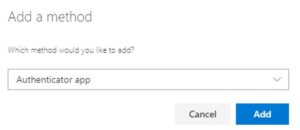
You are now prompted to download and install the Microsoft Authenticator app on your smartphone. - Once downloaded, touch ‘Open’.
- The app asks you to accept their policy statement. Touch ‘I Agree’. You are migrated to the next screen.
- Touch ‘Work or school account’.
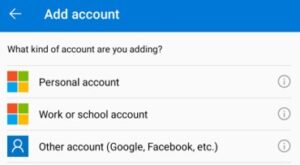
- On your computer, click ‘Next’. A QR code displays.
- Using your smartphone, scan the code using the Microsoft Authenticator app.
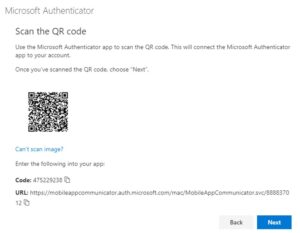
- On your computer, click ‘Next’. The ‘Account added successfully’ message appears at the bottom of the screen.
Important: Depending on your smartphone settings, you may receive the message “App Lock Enabled”. To better protect you, we have enabled App Lock by default.
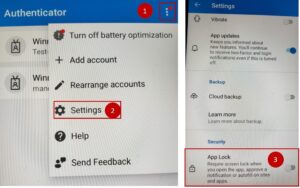
To respond to an MFA notification without having to enter your device PIN, go to the Settings inside the Microsoft Authenticator app on your smartphone (Menu| Settings), scroll down to the Security section and turn off the ‘App Lock’ setting. - On your computer, you are prompted to try out the MFA app.
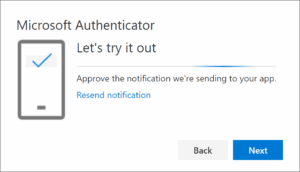
- On your smartphone, touch ‘Approve’ within 30 seconds to complete the setup.
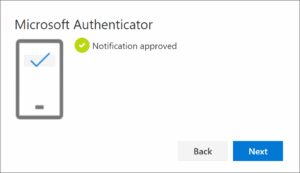
- You are then notified that the sign-in was approved.
- You are then notified that the sign-in was approved.
.png?target=52cc4393-6a95-4ff7-8fbf-6398301702e4)
.png?target=55c702fd-2d28-46a1-a4d4-85ee1cf24665)
.png?target=65b5384c-b265-4a20-b8b7-3867a9aae96d)